Beta: ask ChatGPT, Claude, Gemini or Perplexity about your trips with TripStow
The short answer: you can now connect your TripStow account to ChatGPT, Claude, Gemini or Perplexity and ask it about your own trips and travel stats. It is a free beta, it only reads, and setting it up takes a minute: add a custom connector in your assistant, paste the address below, sign in to TripStow and press Connect.
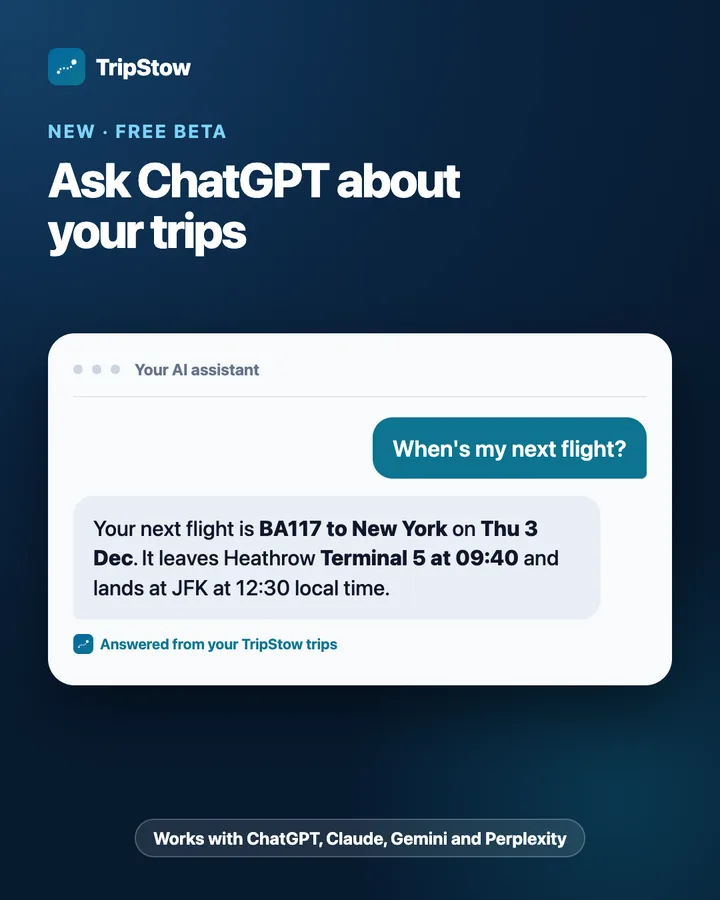
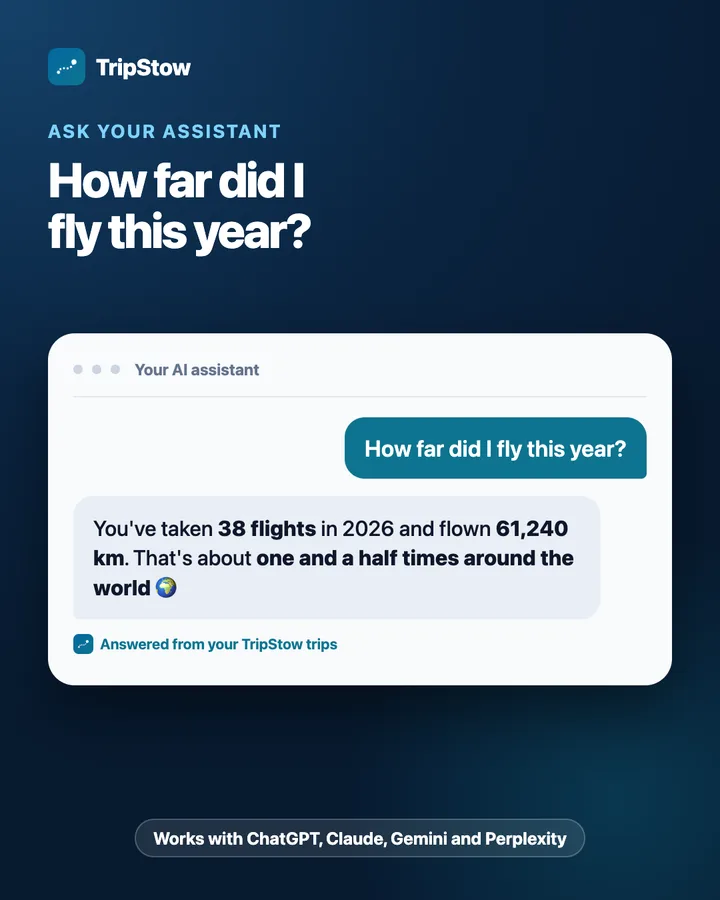
https://tripstow.com/mcpThen ask things like “When is my next flight?” or “How many countries have I flown to this year?” and your assistant answers from your TripStow trips, not from guesswork.
What is TripStow in your AI assistant?
TripStow keeps your flights, trains and hotel stays in one place, built from the booking emails you forward. The new beta is a remote MCP server: the standard way AI assistants connect to outside apps. Once you allow it, your assistant can look up your plans and your travel stats whenever you ask.
Your own assistant does the thinking, so TripStow does not charge for questions. Reading your trips is free on every account.
Before you start
- A TripStow account with a confirmed email address, and a few trips in it. Start free if you have not yet.
- An assistant that lets you add a custom connector. Each provider decides which of its plans include this, and those rules change, so check your assistant's own help pages if you cannot find the option.
- A computer is easiest for setting it up. Once connected, the connector usually works in that assistant's apps too.
In every assistant the last two steps are the same. You sign in with your normal TripStow login (email, Google or Apple), then a TripStow page names the assistant asking for access and you press Connect. TripStow then emails you to confirm an assistant was connected.
How do I connect TripStow to ChatGPT?
ChatGPT calls these plugins. Adding one works on a free ChatGPT account, with no developer mode needed. Business and Enterprise workspaces may need an admin to allow custom servers first.
- On chatgpt.com, open Plugins from the side menu.
- Choose Add (top right), then Add custom MCP server.
- Enter the name TripStow. Under Connection, keep Server URL selected and paste
https://tripstow.com/mcp. - Leave Authentication on OAuth. There is no need to open the advanced OAuth settings.
- Tick I understand and want to continue, then choose Create as a plugin.
- Choose Connect TripStow, sign in to TripStow and press Connect.
- Start a new chat and ask your question, mentioning TripStow if ChatGPT does not use it straight away.
How do I add TripStow as a Claude connector?
Claude supports custom connectors on all its plans, including Free, which allows one. On Team and Enterprise plans an owner adds the connector first and members then connect to it.
- On claude.ai or in the Claude desktop app, open Settings (or Customize), then Connectors.
- Choose Add, then Add custom connector.
- Name it TripStow and paste
https://tripstow.com/mcpas the remote MCP server URL. - Leave the sign-in settings as Claude detects them and choose Add.
- When Claude asks you to sign in (straight away, or the first time you use it), sign in to TripStow and press Connect.
- In a chat, open the + menu, check TripStow is turned on under Connectors, and ask away.
Connectors belong to your Claude account, so one set up on the web also appears in the desktop and mobile apps.
How do I connect TripStow to Gemini?
Gemini adds custom servers through Developer Mode in its settings. It is newer than the others and may not be offered on every account or in every country yet.
- On gemini.google.com, open Settings (the gear at the bottom of the side menu), then Developer Mode.
- Choose to add a custom app or MCP server.
- Paste
https://tripstow.com/mcpas the MCP server URL. - Gemini shows Connect this MCP server. Read it, tick I understand and accept the security and privacy risks and choose Connect.
- Google then asks to link your Google Account and TripStow. Choose Agree and continue.
- Sign in to TripStow and press Connect.
- Back in Gemini, save the app as TripStow and choose Connect, then ask Gemini about your trips. Gemini may ask you to allow each TripStow action the first time.
How do I connect TripStow to Perplexity?
Perplexity calls these custom remote connectors, and they need a paid Perplexity plan. In an organisation account, an admin may have to allow members to add them.
- On perplexity.ai, open Connectors (shown as Plugins on some accounts).
- Choose Add custom, then an MCP connector, and pick Remote.
- Name it TripStow and paste
https://tripstow.com/mcpas the MCP server URL. - Leave authentication on OAuth, tick the acknowledgement and choose Add.
- Select the TripStow card, sign in to TripStow and press Connect.
- Make sure TripStow is turned on, then ask your question.
What can you ask?
Ask the way you would ask a friend who has your itinerary. A few to try:
Trips coming up
- “When is my next flight, and which terminal does it leave from?”
- “What is in my Lisbon trip, in order?”
- “Am I flying anywhere in the next month?”
Travel stats
- “How many flights did I take this year, and how far did I fly?”
- “Which airports do I use most?”
- “Which airline have I flown most, and on which aircraft?” (Pro)
History and search
- “When was the last time I flew British Airways?”
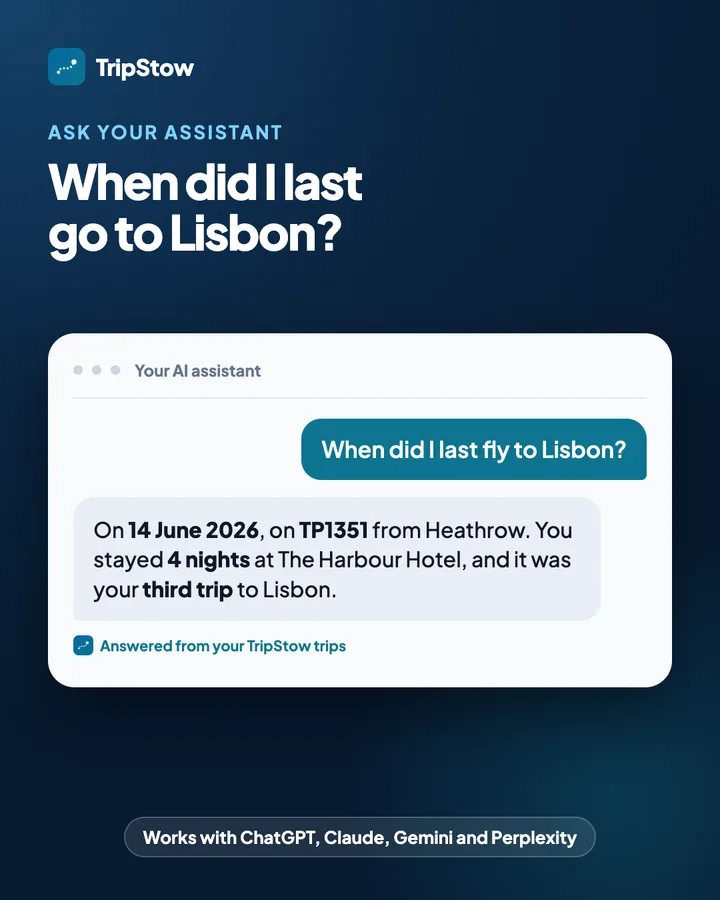
- “Show me every trip to Lisbon.”
Countries
- “Which countries have I been to, and which did I only reach by train?”
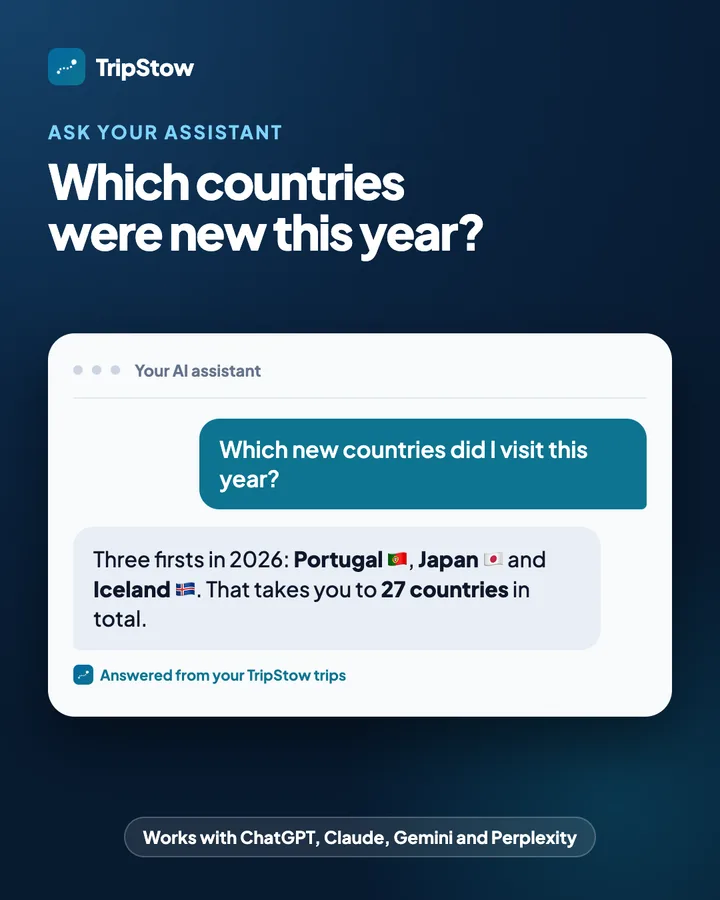
- “Which new countries did I visit in 2025?”
Say you are flying London Heathrow to New York JFK on BA117 next week and staying at The Harbour Hotel. Ask “What's my next trip?” and your assistant can reply with the flight number, airline, both airports, departure and arrival in local time, the terminal, aircraft and cabin, followed by the hotel and its dates. With TripStow Pro it can add the gate and live times as they change.
What the assistant can do
Behind the scenes, TripStow gives your assistant a small set of read only tools:
- Travel stats: lifetime and per year flights and distance, airports, countries flown to, flights booked ahead and your next trips. With Pro, airlines and aircraft too (more in what Pro stats show).
- Upcoming plans: your next flights, trains, stays and other plans, with flight numbers, airlines, airports, local times, terminal, aircraft and cabin.
- Trips: a list of upcoming or past trips, and every plan in any one of them.
- Countries visited: where you have been and how (flown, by train or stayed), and the countries added in a given year, counted by the same countries visited rules as your map.
- Search: finding plans by airline, flight number, airport or city, such as the last time you flew British Airways or every trip to Lisbon.
Adding bookings by asking your assistant is planned for TripStow Pro later. For now, keep forwarding your booking emails as usual.
What can the AI see, and what can it not?
The assistant only ever sees your own trips. It never gets:
- booking references or seat numbers;
- hotel addresses;
- passport or loyalty numbers;
- your notes or the emails you forwarded;
- your private calendar link;
- trips that travel partners have shared with you.
It cannot change your account, email anyone or share anything. It can only read.
A few more safeguards. The TripStow consent page names the assistant asking for access and warns you to connect only if you started this yourself, so if a page you did not expect asks you to press Connect, close it. TripStow emails you every time an assistant is connected. Only accounts with a confirmed email address can connect.
One thing to know: what your assistant reads from TripStow is sent to the AI provider you chose, and from there their own terms and settings apply, just like anything else you type into a chat.
How do I disconnect?
- In TripStow, open Settings.
- Find Connected AI assistants.
- Press Disconnect next to the assistant.
Access stops at once. You can also remove the connector in your assistant's settings, but disconnecting in TripStow is the one that closes the door. If you ever see an assistant there you do not recognise, disconnect it.
It is a beta: tell us what you ask
The assistants change their connector menus often, and we are still learning which questions travellers ask most. If a step above has moved, or your assistant gets something wrong, let us know through the contact page.
Reading is free on every account; TripStow Pro adds the airline and aircraft breakdowns and live gate and times. Start free, forward a booking, and ask your assistant when you fly next.